Student
Accept your invitation
Open the newest invitation
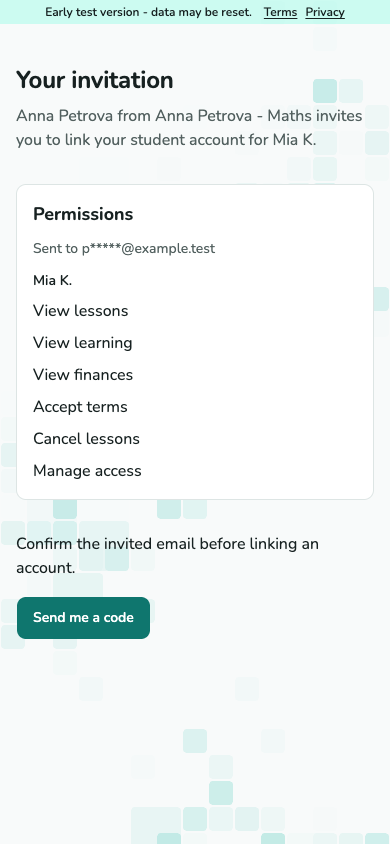
Open the link sent to your invited email. Check who invited you and which permissions are listed. If the link expired, ask the inviter for a new one.
Screenshot not available yet.
Invitation screen with inviter and listed permissions.
A-04 · Open the newest invitation Confirm your email and account
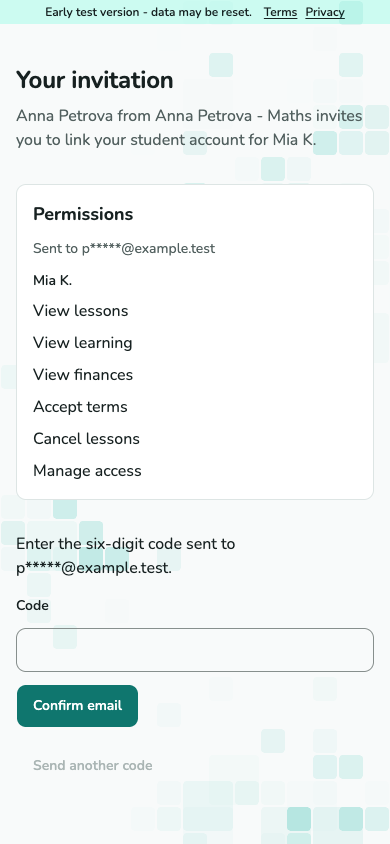
Select Send me a code and enter the code sent to the invited address. Sign in if asked, check the account you are linking, then accept. You receive only the listed permissions.
Screenshot not available yet.
Invitation email confirmation step with code input.
A-04 · Confirm your email and account
Review teaching terms
Read before accepting
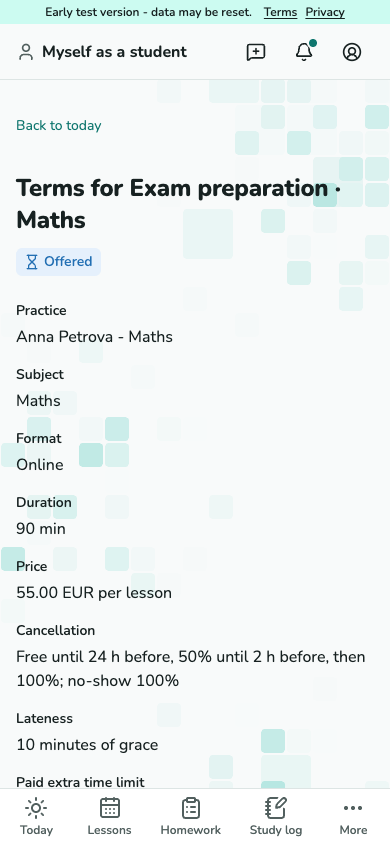
Open Terms to review from your home screen. Check the service, price, cancellation and lateness rules and start date. Only an adult student with permission can accept terms. Accept, or decline with an optional reason; accepted terms are frozen.
Screenshot not available yet.
Offered teaching terms showing the service, price and cancellation rules.
S-05 · Read before accepting
Find your next lesson
Check upcoming lessons
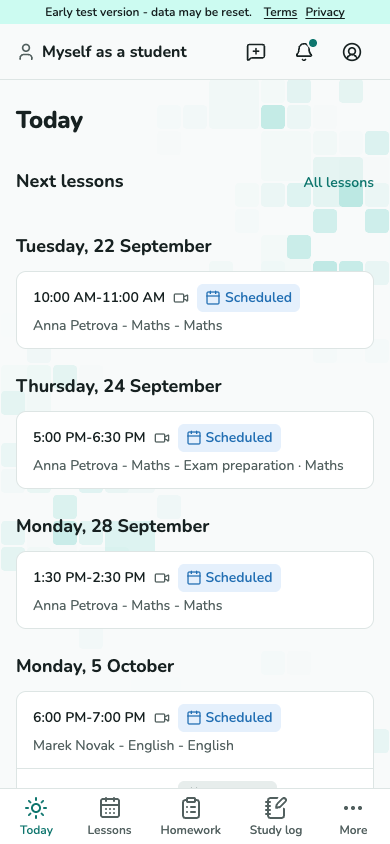
Open Today to see lessons in your time zone. Each practice has its own records.
Screenshot not available yet.
Home screen with upcoming lessons.
S-01 · Check upcoming lessons Open the meeting details
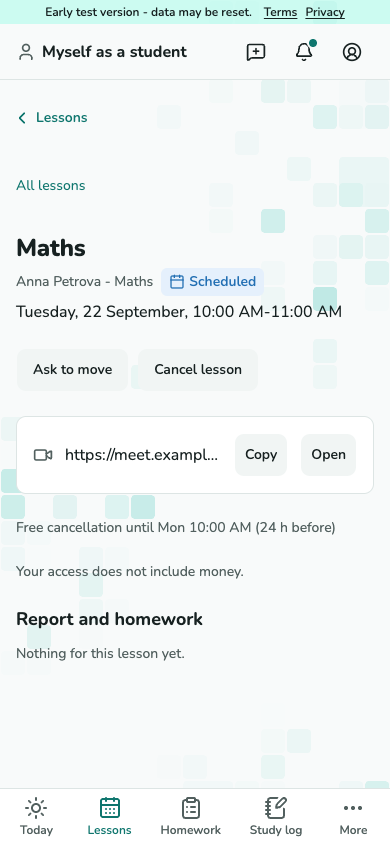
Open the lesson to find its meeting link or address, date, time and status. Your tutor records attendance and closes the lesson. Prices appear only for adults with finance access.
Screenshot not available yet.
Participant lesson card with meeting details and status.
S-02 · Open the meeting details
Cancel a lesson
Read the consequence before cancelling
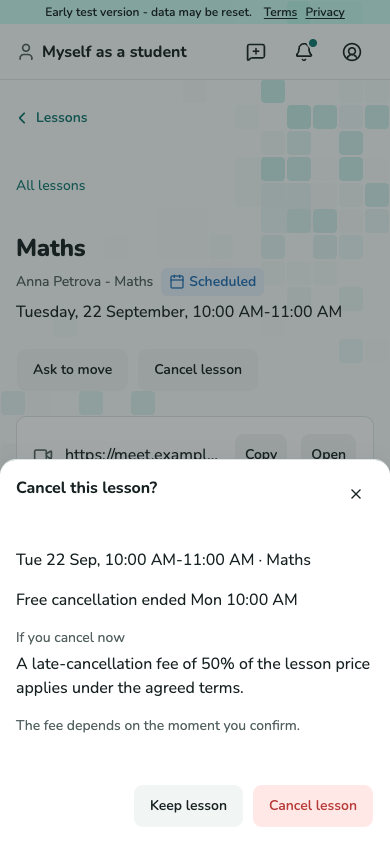
With permission to cancel, open the lesson and choose Cancel lesson. Read the deadline and current consequence, then confirm. The fee depends on when you confirm; minors and readers without finance access see no amount.
Screenshot not available yet.
Lesson cancellation dialog with deadline and current consequence.
S-07 · Read the consequence before cancelling
Read your money statement
Check what is owed or prepaid
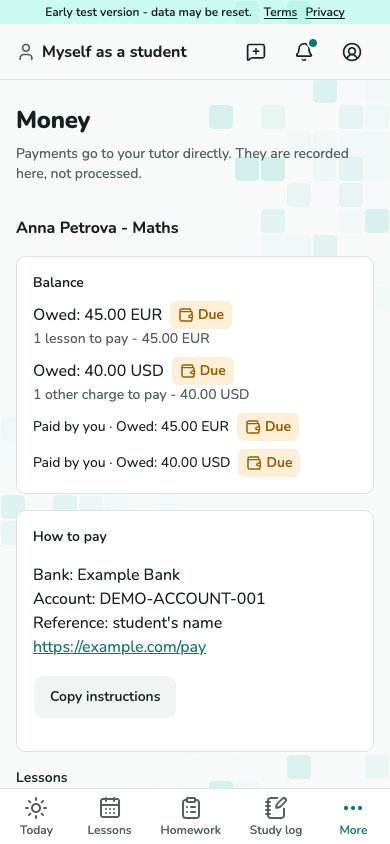
Adult students need finance access. Open Money to see each practice’s charges, recorded payments, debt and advance separately. Pay the tutor directly; TutorFrame records payments and does not process them.
Screenshot not available yet.
Money statement grouped by practice with charges and payments.
S-06 · Check what is owed or prepaid
Follow homework
Open the assignment
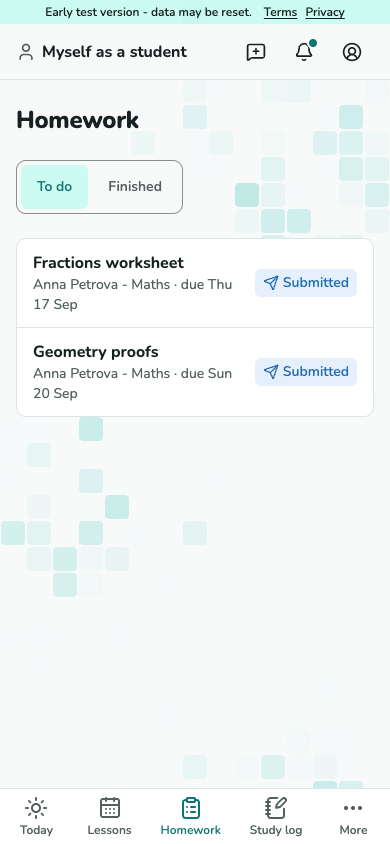
With learning access, open Homework. Check To do and Finished, then open the task for instructions, materials and its due date.
Screenshot not available yet.
Homework list with due dates and completion states.
S-03 · Open the assignment Submit and read feedback
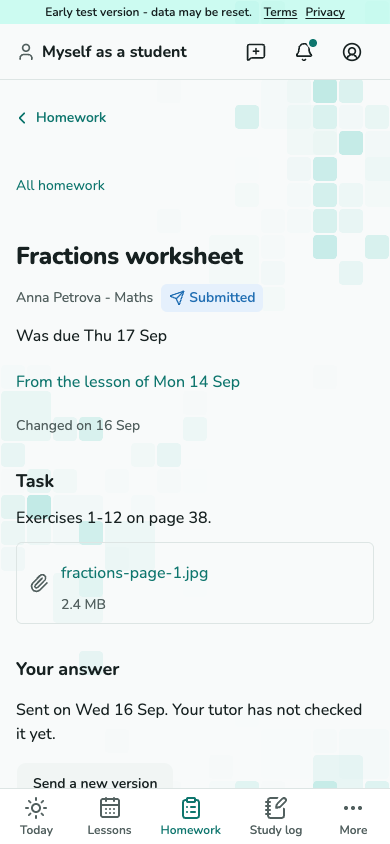
Write or upload your answer, or mark the task done. Read the tutor’s feedback and send a new version if changes are requested. Done does not mean the tutor accepted your work.
Screenshot not available yet.
Homework detail with task, answer versions and feedback.
S-03 · Submit and read feedback
Read lesson reports
Open the published report
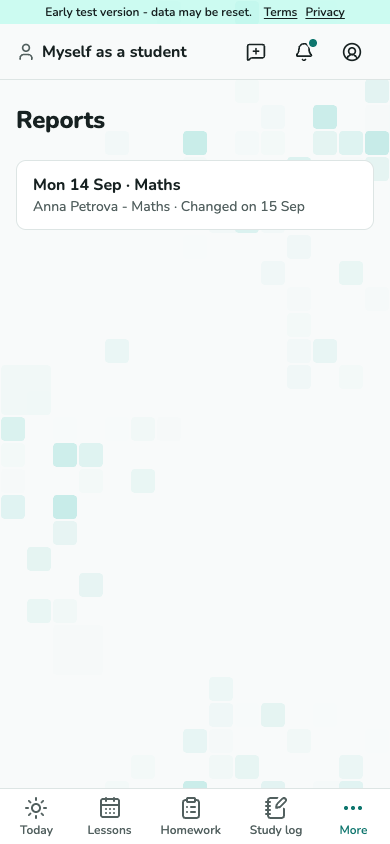
Reports are available to adult students when the tutor shares them and learning access permits it. Open Reports and choose a lesson.
Screenshot not available yet.
Published reports list with lesson dates and update markers.
S-04 · Open the published report
Answer a price-change offer
Compare the old and new terms
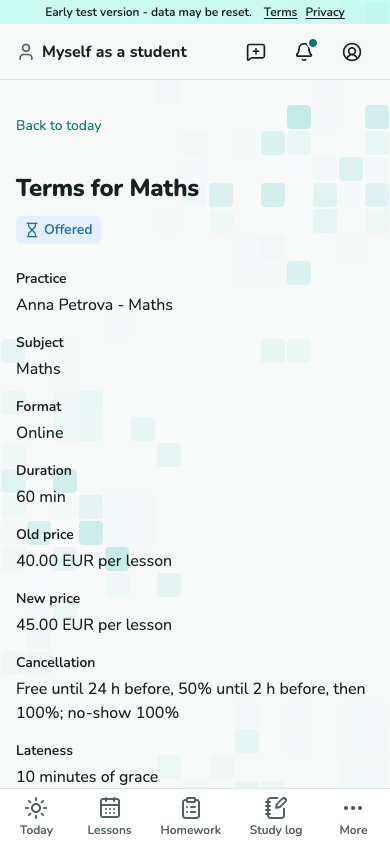
Only adult students with terms permission can answer. Open the price-change offer, compare the old and new price and check its start date. Accept or decline before the deadline. Silence never counts as acceptance; confirmed bookings keep their price.
Screenshot not available yet.
Price-change terms review showing old and new price.
S-05 · Compare the old and new terms
Manage access to your learning
Invite an adult reader
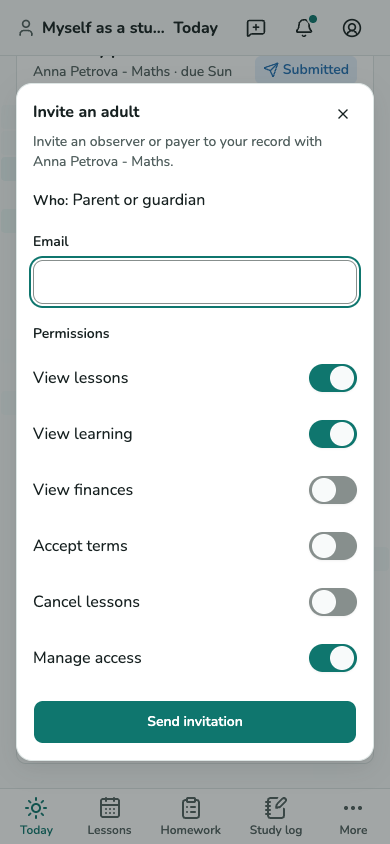
An adult student with access-management permission can choose Invite on the relevant tutor’s card in Today. Enter the adult’s email, check the permissions you may delegate and send the invitation. Minors do not have this action.
Screenshot not available yet.
Student invitation dialog with adult reader permissions.
S-01 · Invite an adult reader Review or revoke your grants
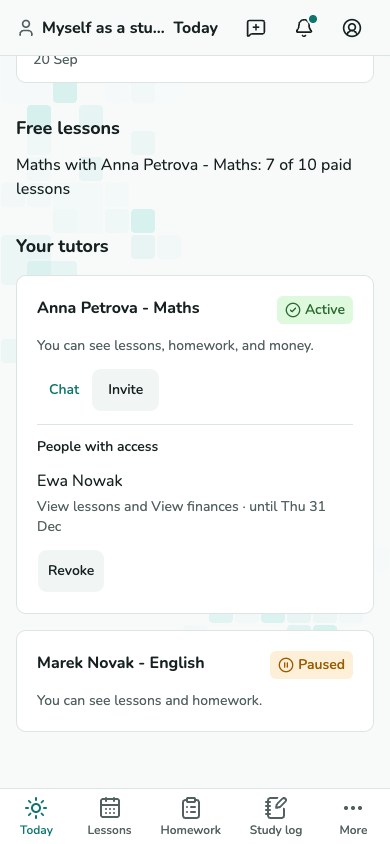
Under People with access, check the grants you issued for that practice. Choose Revoke for the relevant grant and read the confirmation. It stops that grant without changing another practice’s access.
Screenshot not available yet.
People with access on an adult student’s tutor card.
S-01 · Review or revoke your grants
Subscribe to your lesson calendar
Add lessons to your calendar
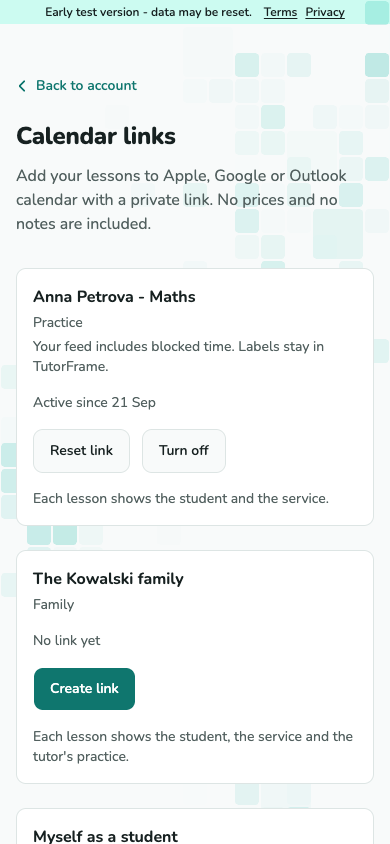
Open Account settings - Calendar links and create a link for the right context. Add the private link to your calendar app. It contains permitted lessons, with no prices or notes, and updates on the calendar app’s schedule. Keep the link private.
Screenshot not available yet.
Calendar link context rows without secret link values.
A-07 · Add lessons to your calendar Stop calendar updates
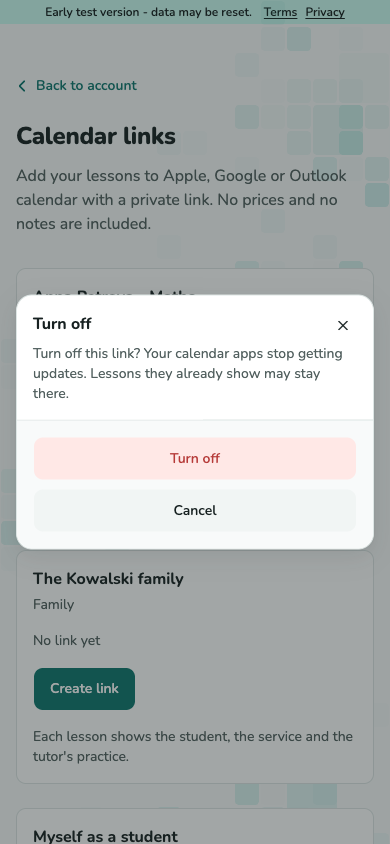
Choose Turn off and confirm to stop the feed. Reset link replaces a leaked link. Calendar apps may retain events they already imported.
Screenshot not available yet.
Turn off calendar link confirmation.
A-07 · Stop calendar updates
Read notifications
Open the relevant update
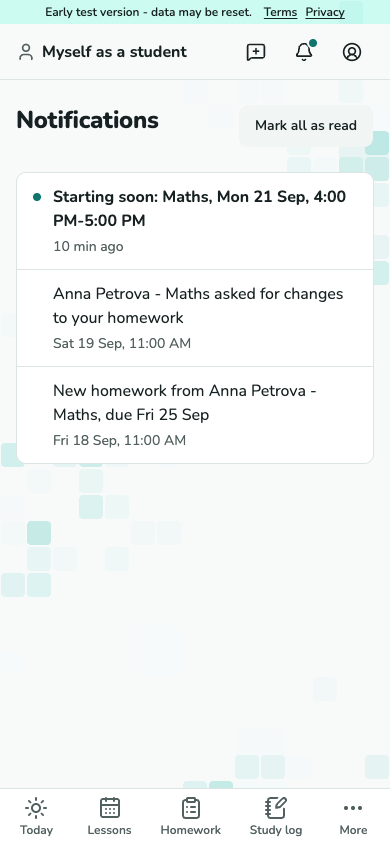
Open Notifications for lesson reminders, changes and learning updates your permissions allow. Select a notice to open its screen, or mark notices read. Cancelled lessons and paid debts do not keep generating their reminders.
Screenshot not available yet.
Notifications list with unread markers.
A-08 · Open the relevant update
Switch between your contexts
Check whose records you are viewing
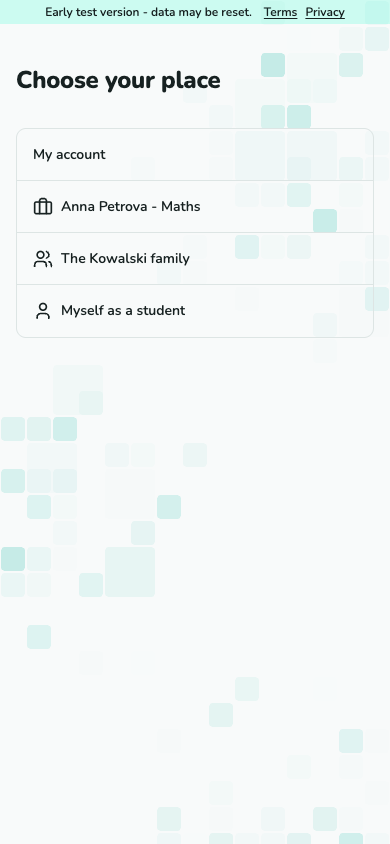
Use the context switcher to choose your family, practice or student context. On a phone, open it through the account menu. The current context’s name and page address identify the records you are viewing.
Screenshot not available yet.
Context switcher with practice, family and self entries.
A-05 · Check whose records you are viewing 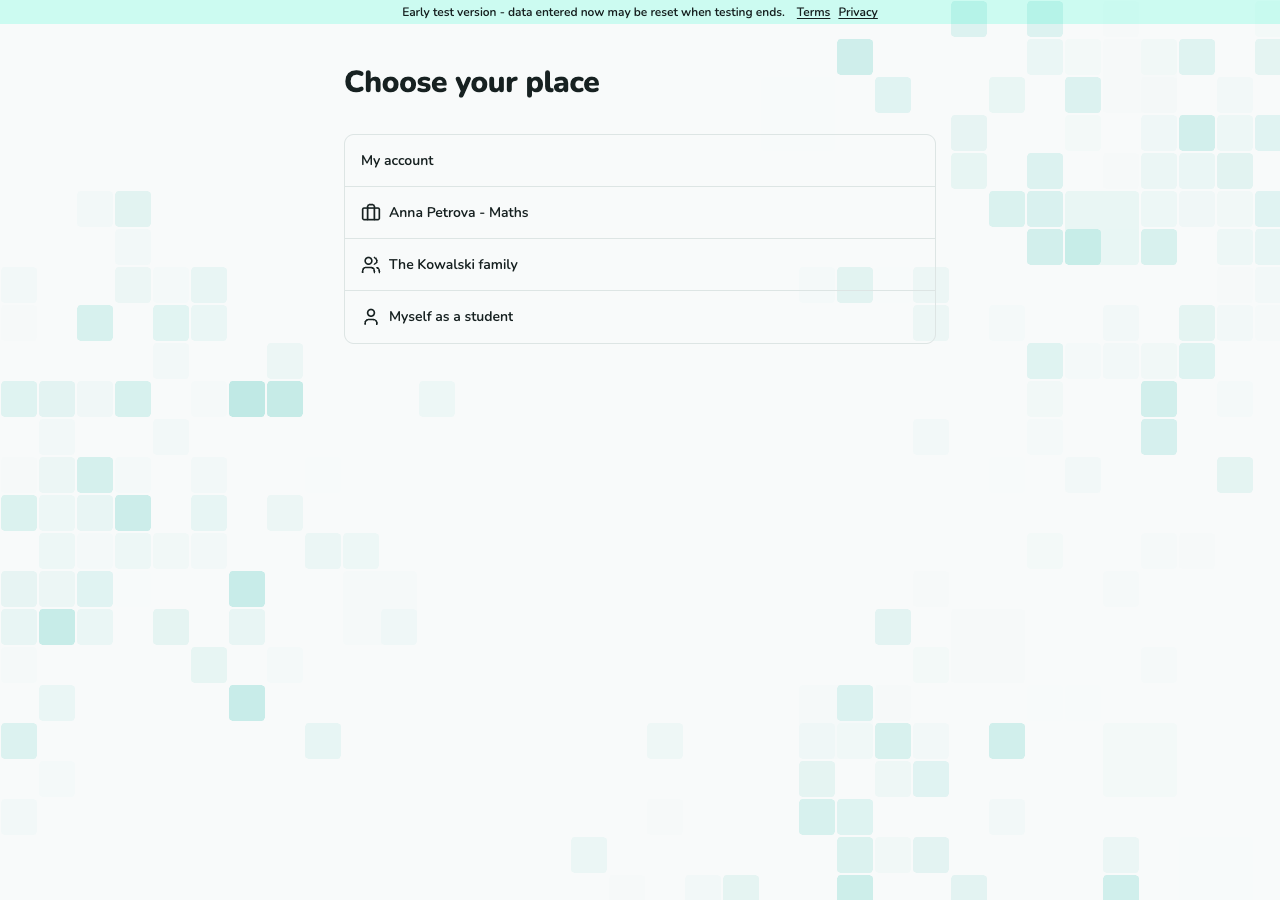
Screenshot not available yet.
Context switcher with practice, family and self entries.
A-05 · Check whose records you are viewing (desktop)
Use your login and confirm access at 18
Use your own invited account
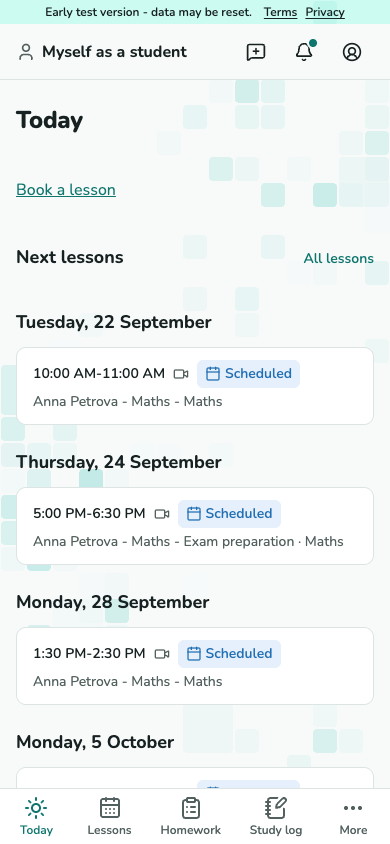
A parent must enable a minor’s login before the child can accept its invitation. Open the invitation sent to your own address and use your own account. If consent is revoked, your login stops at the next request.
Screenshot not available yet.
Student Today screen with lessons and permitted learning records.
S-01 · Use your own invited account Confirm access with each tutor
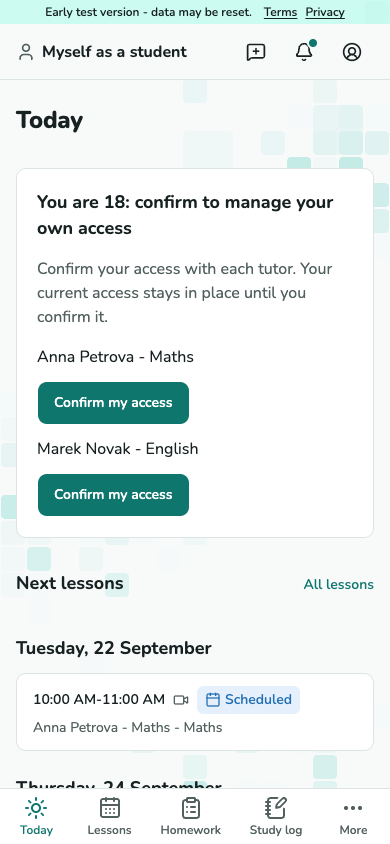
When Today shows You are 18: confirm to manage your own access, choose Confirm my access for each tutor. Confirmation happens per relationship. If it fails, keep the prompt and try again or contact support.
Screenshot not available yet.
Student adulthood prompt with one confirmation per tutor.
S-01 · Confirm access with each tutor
Ask to move a lesson
Propose another time
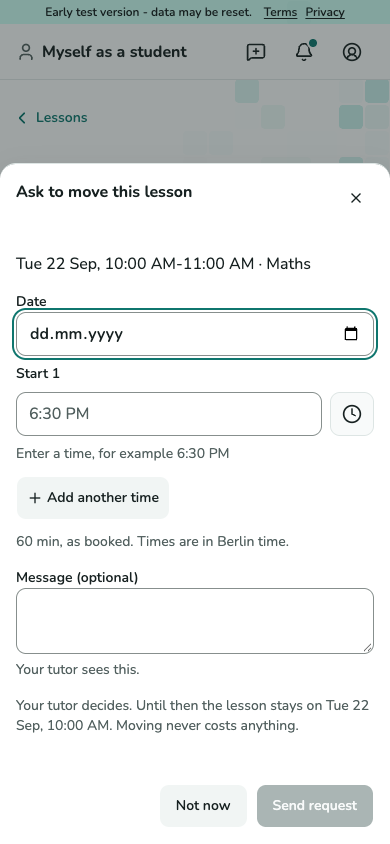
With permission to cancel, open a lesson that has not started and choose Ask to move. Suggest up to three times and an optional message, then send. Moving itself has no fee; the old time stays until a new one is accepted.
Screenshot not available yet.
Ask to move dialog with alternative date and time fields.
S-08 · Propose another time Answer a time your tutor offered
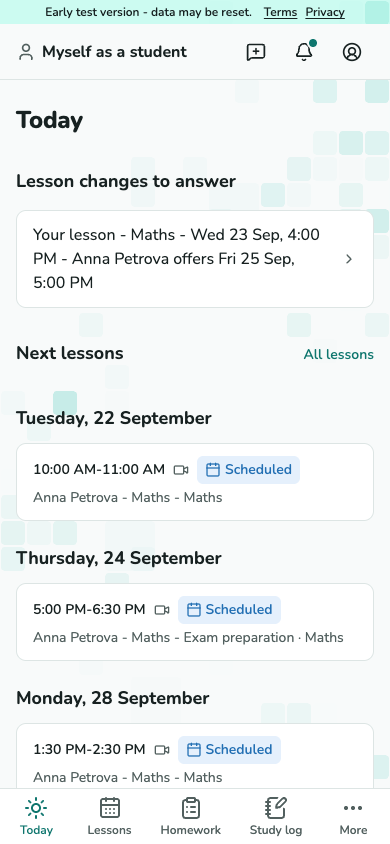
When Today shows an offer under Lesson changes to answer, open the notice. On its lesson page, inspect the proposed time and choose Accept or Decline. Acceptance checks that the time is still free. A pending request can be withdrawn; a changed or started lesson may end the request.
Screenshot not available yet.
Today showing the tutor’s proposed new lesson time.
S-01 · Open the tutor’s time offer
Check your lesson package
Check units and the end date
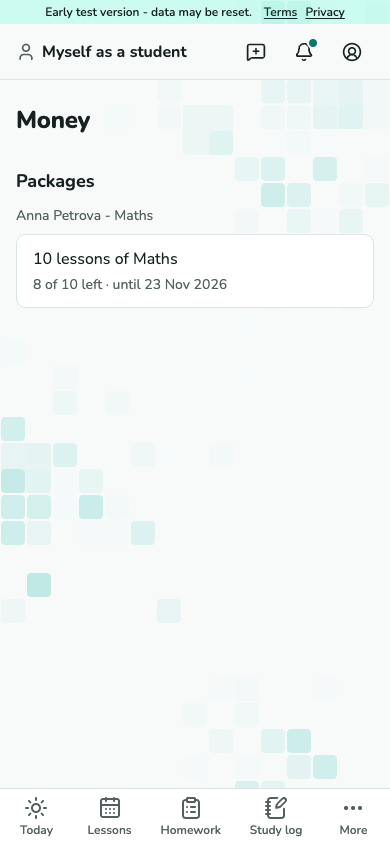
Check the package’s remaining units and end date. Ask your tutor to extend the end or refund unused units when needed. Minors can read permitted units and term, never amounts; a sale and its payment are separate records.
Screenshot not available yet.
Package balance with remaining units and expiry.
S-06 · Check units and the end date
Book a lesson
Choose an available time
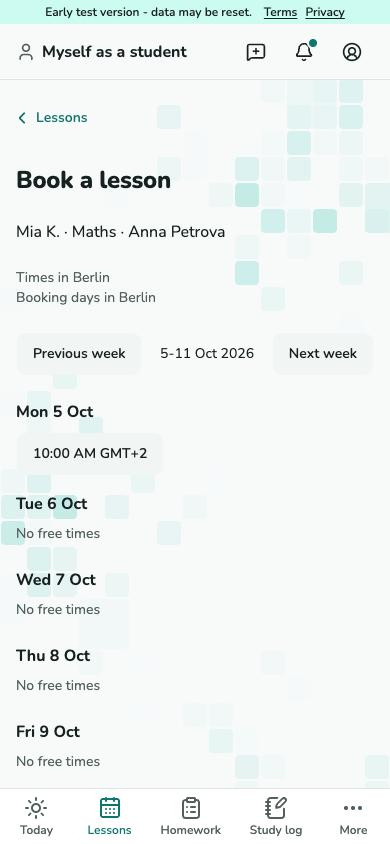
With booking permission, choose Book a lesson when your tutor has opened online booking. Select the enrollment, then a time. Missing terms or a pending price change may need an adult’s answer first.
Screenshot not available yet.
Booking week with available times.
S-09 · Choose an available time Review before booking
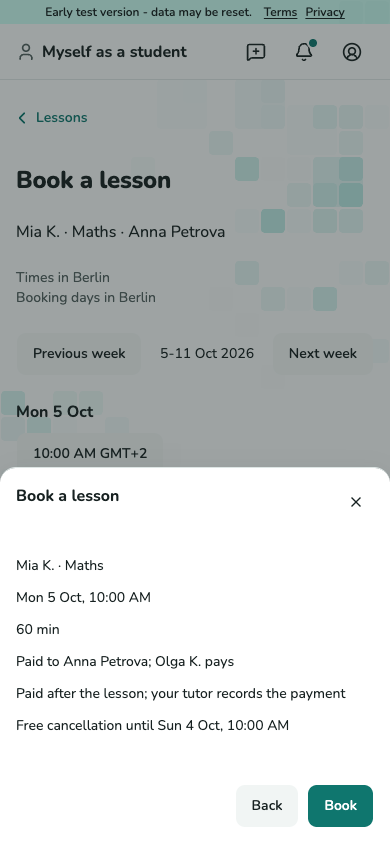
Check the lesson time, duration and payer in the confirmation. Review the cancellation deadline when one is shown. Confirm Book once. A taken time reloads the week; a changed price needs another confirmation. No payment is taken here.
Screenshot not available yet.
Booking confirmation with lesson time, duration, payer and Book button.
S-09 · Review before booking
Keep a study log
Write a personal entry
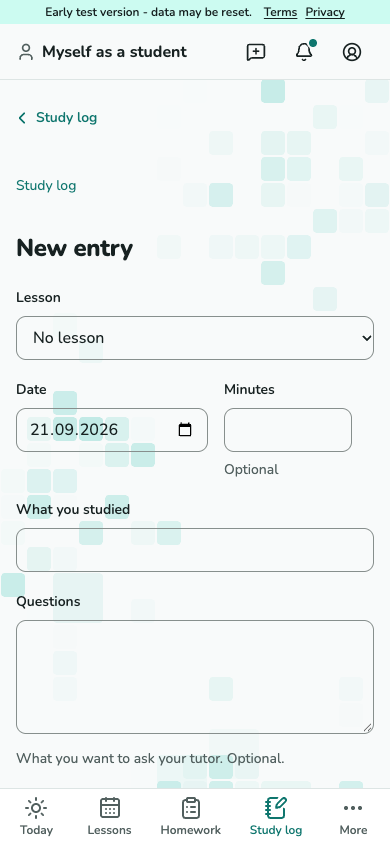
With learning access, open Study log - Add entry. Choose a lesson if relevant, set the day and write what you studied, optional questions and links. Save; entries are private until you choose readers.
Screenshot not available yet.
Study-log entry form with day, topic and questions.
S-11 · Write a personal entry Choose who sees your entry
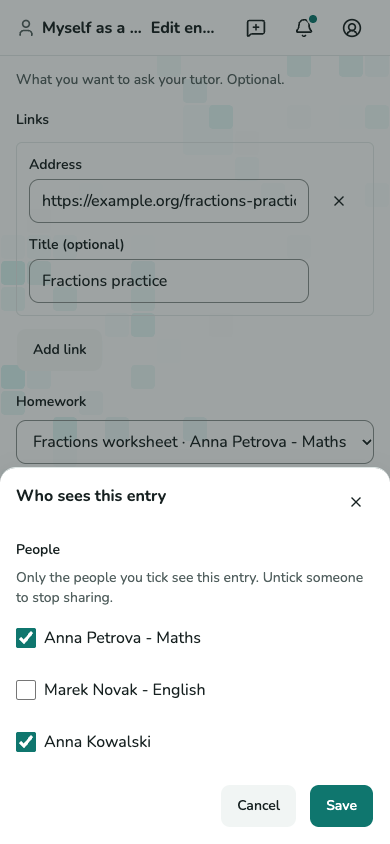
Open Choose who sees it and tick the permitted readers. Save the choices, or untick a reader to stop sharing. Shared entries are readable only while both author and reader retain access.
Screenshot not available yet.
Study-log reader selection dialog.
S-11 · Choose who sees your entry
Read shared learning goals
Read the goal and observations
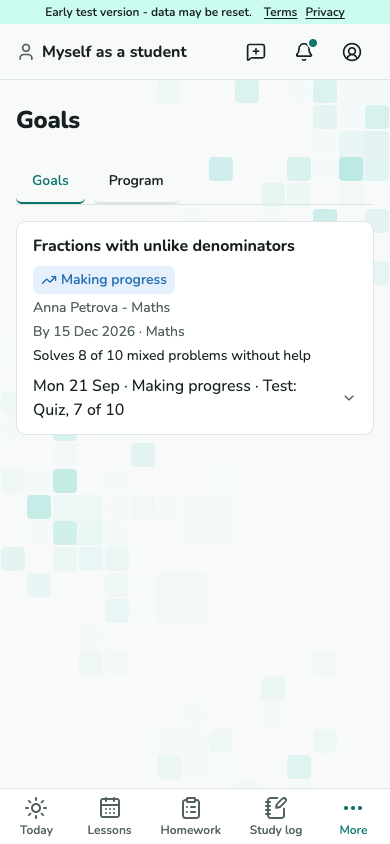
With learning access, open Goals. Only goals shared with you appear. Read the criterion and tutor’s observations; attendance alone never marks a goal reached.
Screenshot not available yet.
Shared learning goals showing criteria and observations.
S-12 · Read the goal and observations
Follow your free-lesson reward
Check your progress
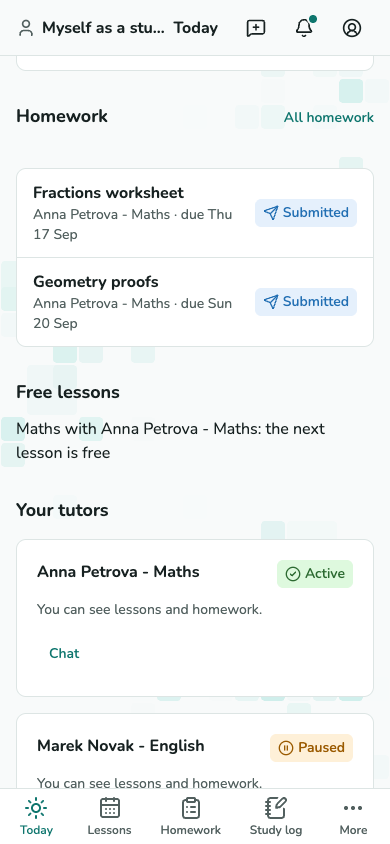
Check the loyalty count for the service. The tutor’s close records qualifying lessons; when the threshold is reached, a free lesson waits for the next qualifying lesson. You do not need to apply it yourself.
Screenshot not available yet.
Loyalty reward showing that the next qualifying lesson is free.
S-01 · Check your progress
Book a seat in a group lesson
Choose a group with free seats
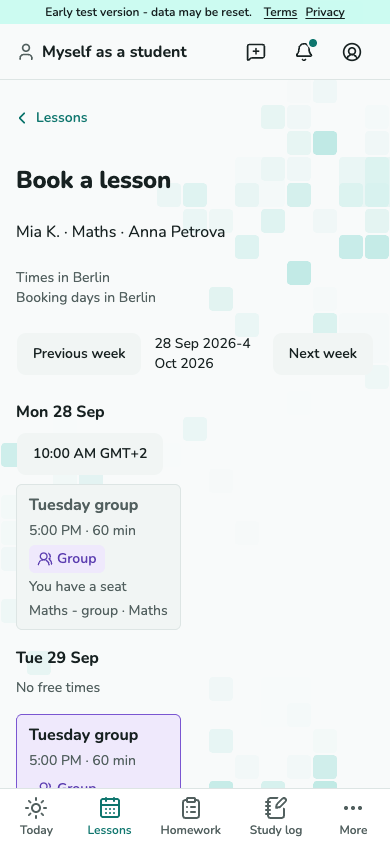
With permission to book and cancel lessons, open Book a lesson for the right enrollment while online booking is open. Group cards show time and free seats; Full has no booking button, and You have a seat opens your existing card. Open an available group.
Screenshot not available yet.
Booking week with group lesson cards and seat counts.
S-09 · Choose a group with free seats Confirm the seat booking
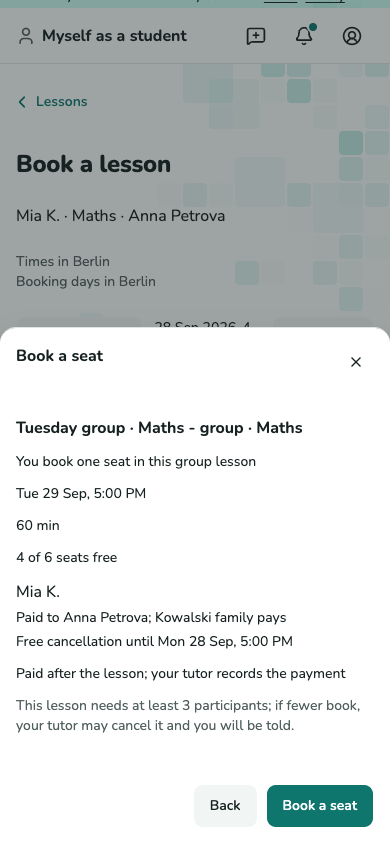
Review your own seat, payer, free-cancellation deadline and the group’s minimum. Prices appear only for an adult student with finance access. Choose Book a seat. A taken seat reloads the week; check the updated availability before trying again.
Screenshot not available yet.
Group seat booking sheet with the lesson, permitted seat choices and confirmation.
S-09 - review and confirm your own seat. Manage only your own seat
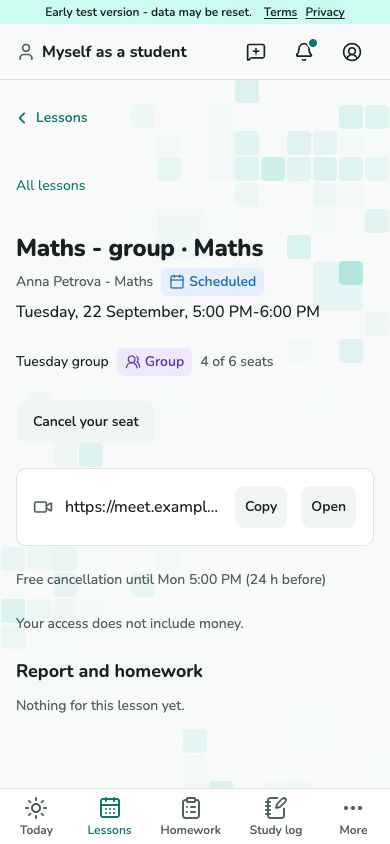
The lesson card shows your seat. Cancel your seat opens its own cancellation preview and cancels only that seat. You cannot see another family’s prices or records.
Screenshot not available yet.
Participant group lesson card with own seat and cancellation action.
S-02 · Manage only your own seat
Join the waiting list
Set the times that suit you
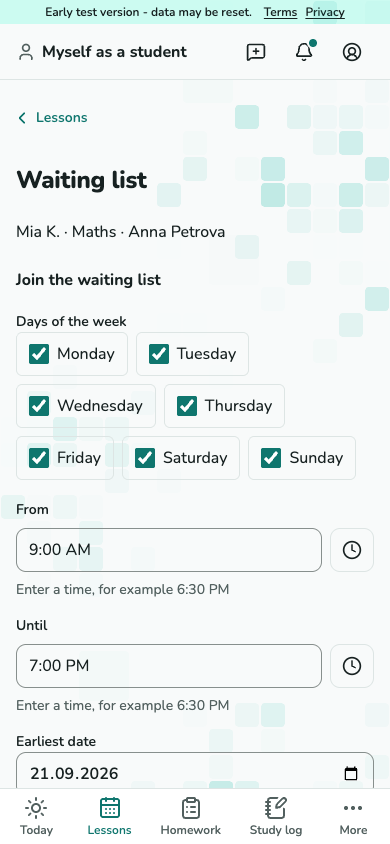
You need permission to book and cancel lessons, an eligible enrollment and online booking open with your tutor. From booking, choose Join the waiting list. Set weekdays, practice-local times and date limits, then join. You see your own request and can leave; queue positions and other families remain private.
Screenshot not available yet.
Waiting list form with preferred weekdays, times and dates.
S-13 · Set the times that suit you Answer an offer before its deadline
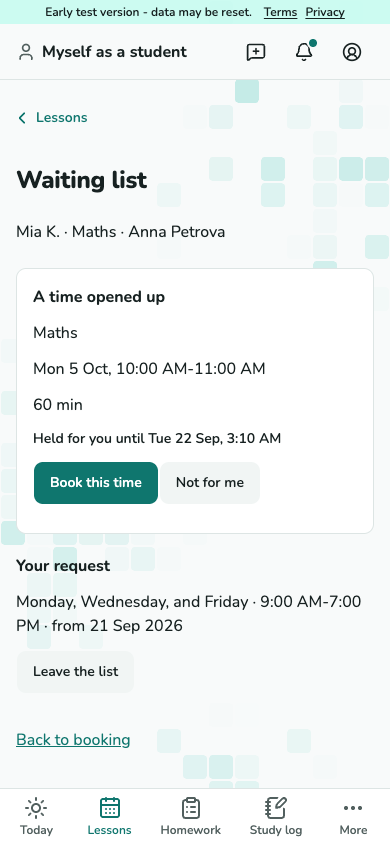
An offer is held for you until its deadline. Open it and choose Book this time to review and confirm the booking, or decline. Declining or expiry keeps your waiting entry; leaving ends it.
Screenshot not available yet.
Waiting list offer with held-until deadline and booking action.
S-13 · Answer an offer before its deadline